Connect
in one tap
Add your service's subscription and tap the button. If a server stops responding, nya switches to a working one by itself.
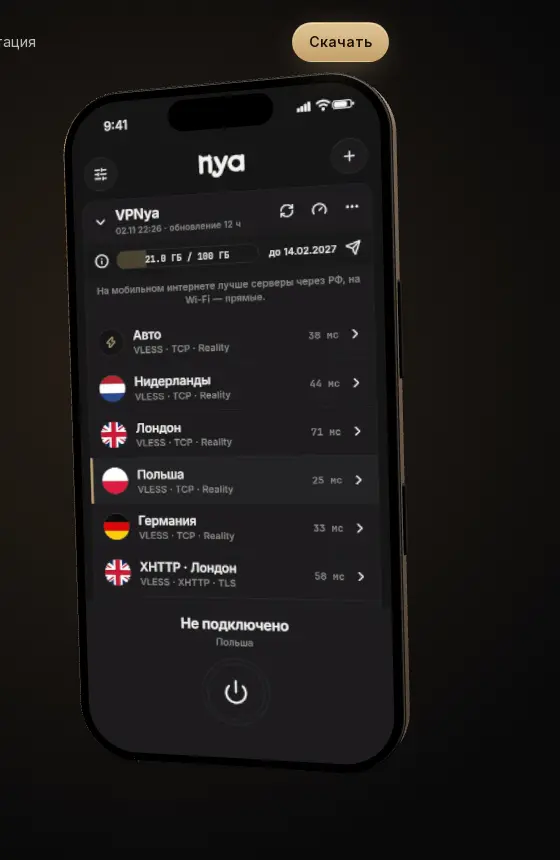
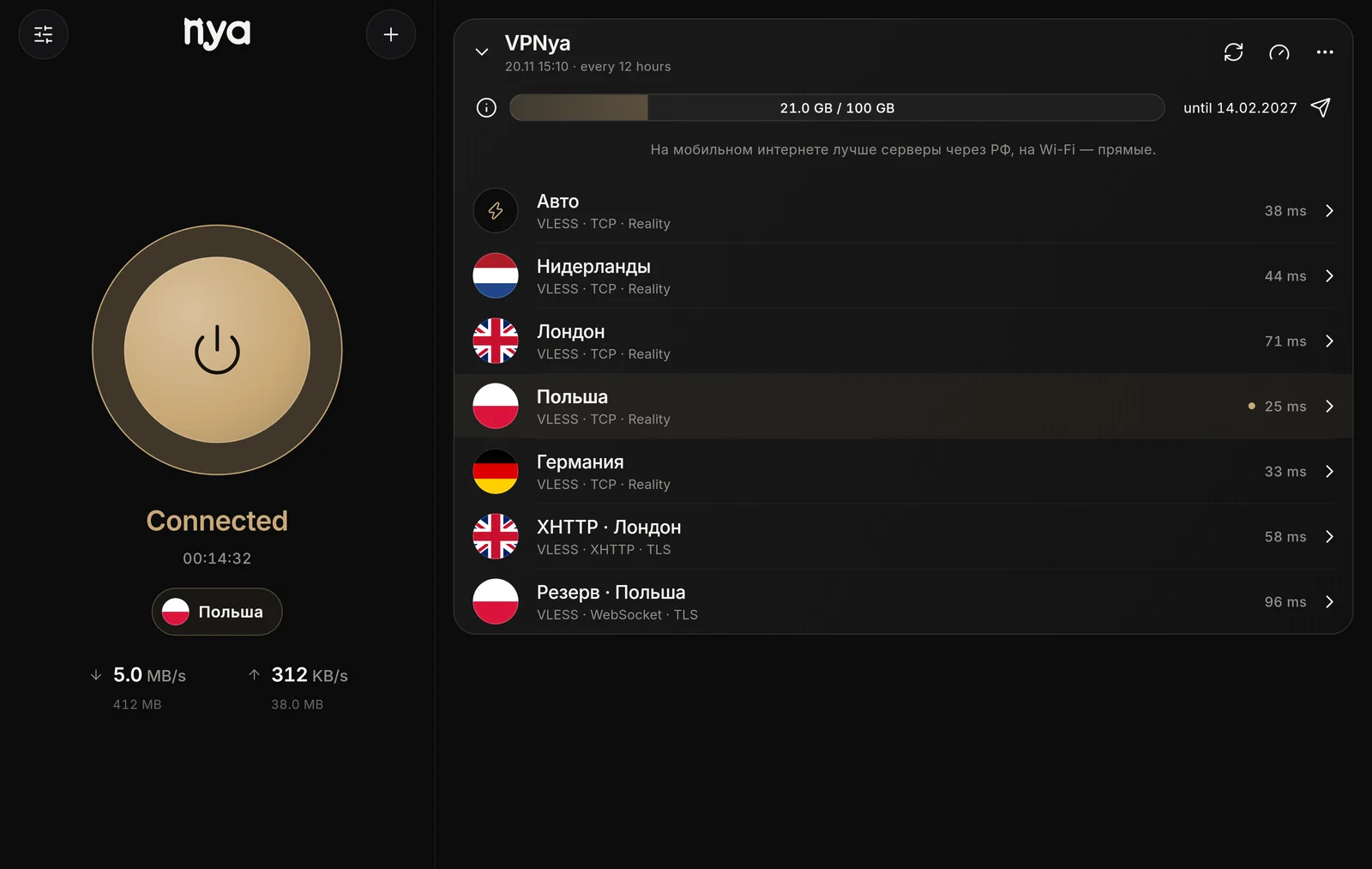
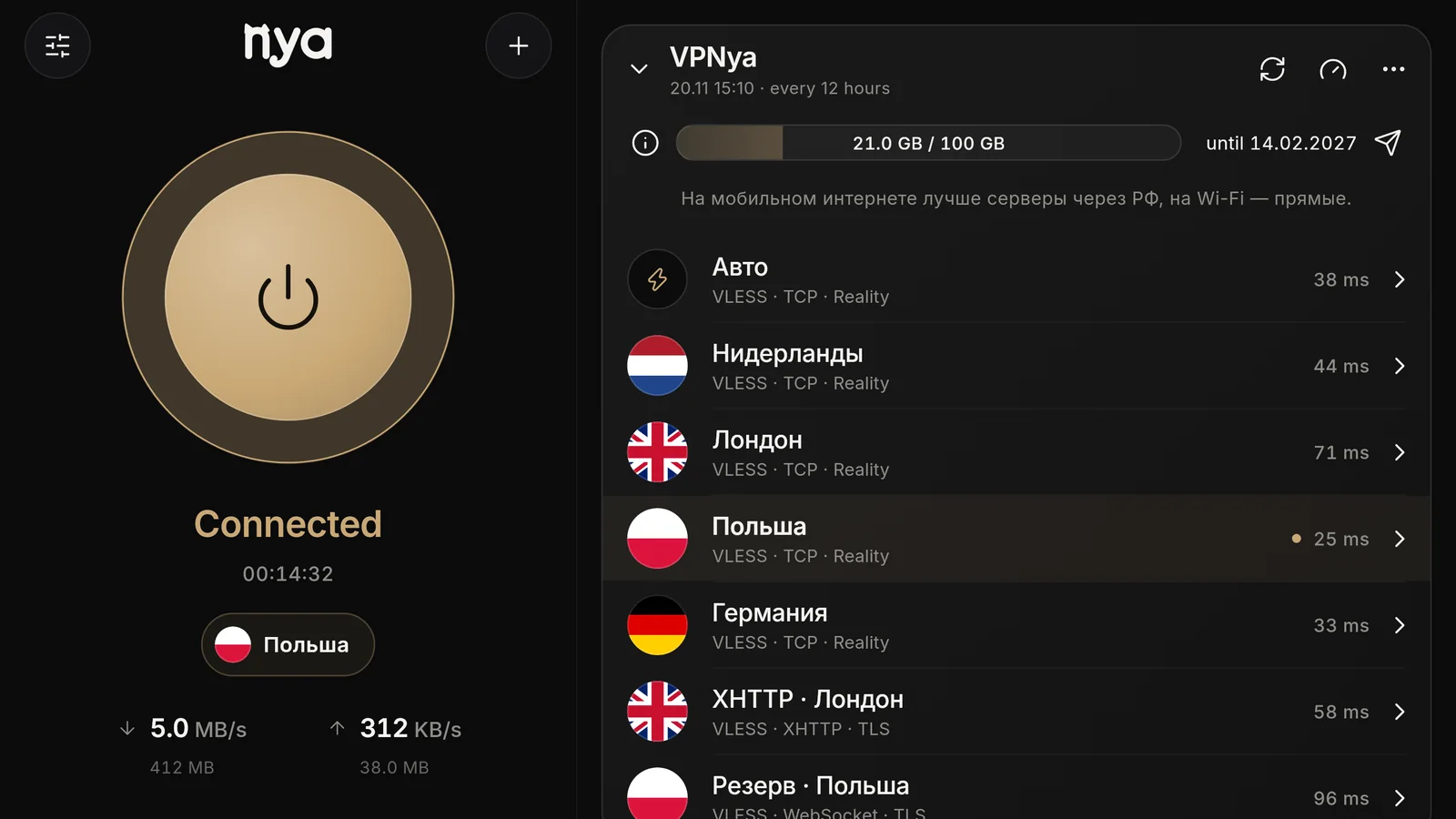
A button and servers. That’s it
Ping, traffic and expiry are right there. Everything else stays in settings.
A server went down, nya already moved on
The app watches the connection and switches to a working server by itself. Subscriptions update in the background.
Every setting at hand
Transport, Reality, fingerprint, FinalMask and full JSON. Your edits survive subscription updates.
Xray inside
- Protocols
- VLESS, Reality, XTLS Vision, VMess, Trojan, Shadowsocks, Hysteria2, WireGuard
- Transport
- TCP, WebSocket, gRPC, XHTTP, HTTPUpgrade, mKCP
- Subscriptions
- Base64, JSON Xray, sing-box, Clash
- Devices
- Android, Android TV, Windows, Linux
No ads. No tracking
We never see your traffic or subscription links. Anonymous statistics turn off with one switch.
On every screen
On desktop, nya hides in the tray and keeps the VPN on. Your TV gets the subscription from your phone by code.
Download
Always the latest version. The app offers updates by itself.
nya has no built-in servers. You need a subscription from your VPN service.
For VPN services
Your colors and banner, notifications, a backup subscription address. Your Provider ID arrives right after payment.
Works with your panel out of the box: Remnawave, 3x-ui, Marzban, Marzneshin, Hiddify and any other with a standard subscription — or your own bot.
- Logo, colors, banner and a simple screen
- Targeted notifications with an image and a button
- Subscription address change and backup
- Limited install links, encrypted and hidden subscriptions
- Fragmentation, noises, Mux, DoH and per-app routing
- Web and Telegram cabinet plus API: settings apply without touching your panel
- Free, no Premium needed: Remnawave and 3x-ui panels, a “Renew” button and reminders 3 days, 1 day, 12 hours and 1 hour ahead
- Your service banner in Recommended: auction from $3
Recommended VPNs
Services that work with nya. Weekly places are won at an auction among VPN services.
Getting started
Android
- Download nya for Android. If your phone is old and the app won't install, take the build for older devices.
- Open the file. The phone will ask to allow installs from this source: allow it and come back.
- Open nya and tap plus in the top right.
- Paste your subscription link, scan the QR code or tap the button on your service's subscription page.
- Tap the round button and allow the VPN. You'll see “Connected”.
Android TV
- On the TV, install a file downloader from Google Play, for example Downloader.
- Enter the address
nyaclient.com/dl/nya-armv7.apk. Newer boxes can usenya-arm64.apk. - Allow the install and open nya. The remote works on every screen.
- Press plus and choose “Send from phone”: a code appears on screen.
- On your phone, open nya, tap the TV icon on the subscription card, then scan or type the code. The phone can be on any network.
Windows
- Download installer and run it. Windows 10 or 11, 64-bit.
- If you see “Windows protected your PC”, click “More info”, then “Run anyway”. This happens with apps without a paid certificate.
- Open nya, click plus and add your subscription.
- If the app asks for administrator rights, right-click the nya icon and choose “Run as administrator”.
Linux
- Download archive and unpack it:
tar -xzf nya-linux-x64.tar.gz - Run
./nya/nya. VPN mode will ask for your password.
iPhone, iPad, Mac and Apple TV
Already in review at Apple. Links will appear here as soon as the App Store approves them.
Can't connect
- Update the subscription: pull the server list down.
- Choose another server. Mobile data and Wi-Fi often work best with different servers.
- Check your subscription expiry and device limit on the subscription card.
- Open Settings → Diagnostics and send a screenshot to your service's support.